
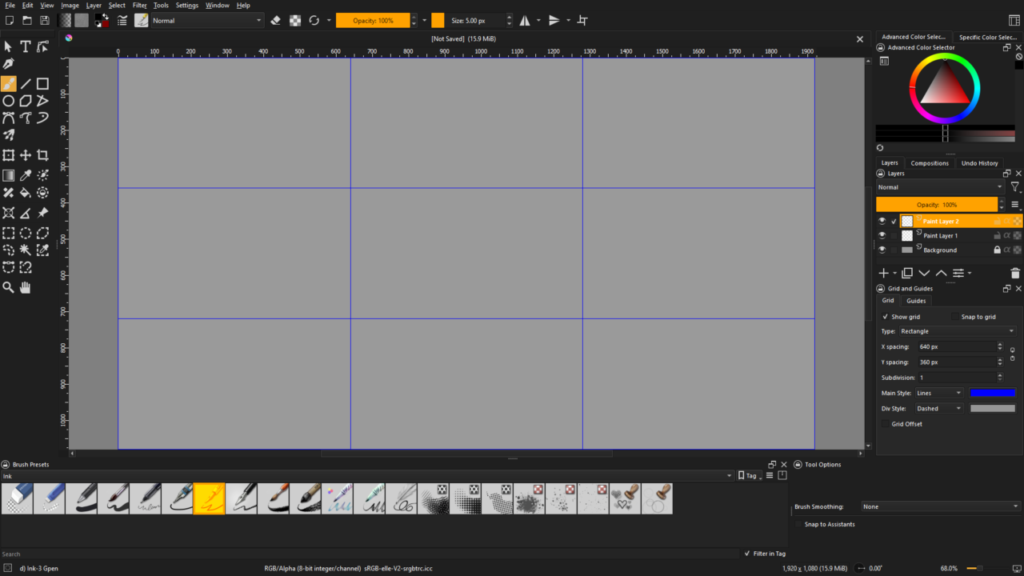
About the rule of thirds:
The rule of thirds is a basic method that guides artists in composing two-dimensional works. For instance, this method is often used in fine art, photography, cinematography, printed media, and other creative visual works. In the tutorial in the next section, we will look at creating a rule of thirds guide in Krita 5.
The rule of thirds consists of dividing your graphic, image or design area into nine equal parts (3 x 3 rectangles). It includes dividing the image up both horizontally and vertically. The intersection points of the two vertical lines and two horizontal lines remain equidistant.
Great movies, books and graphics contain a myriad of factors to help them vie for your interest. In effect, by implementing a plot that creates tension or conflict, the viewer’s interest gravitates toward figuring out the uncertainty of the outcome. You become drawn in.
It’s similar to placing a subject off center in any given image. We naturally expect the subject to be in the center of our vision, our field of view, if you will. However, we become disinterested because it is what we anticipate. Placing the subject outside of the center area introduces conflict and generates visual interest.
Let’s begin the tutorial, starting with the setup phase.
NOTE: If plan to you use your grid for other purposes, take a screenshot of the settings or write them down before making changes.
Krita 5 Document Setup:
Krita Docker Panel with Grid and Guides Settings.
- Launch Krita and create a new document (Ctrl+N). We’ll create a Custom Document with a dimension of 1920 x 1080 pixels for this example. Input the numbers into the dialog and click Create.
- Find the Grid and Guides docker panel on the Krita interface and continue to step 3. If this panel is not visible, verify that the Settings -> Show Dockers toggle menu has a check mark by it. Toggle it if it does not. Also verify that the Settings -> Dockers -> Grid and Guides toggle menu has a check mark by it. Also toggle it if it does not.
- Now that the Grid and Guides docker panel is open, go to the Grid tab and enable “Show Grid”. The Type should be “Rectangle”. Also, because we do not have a square image, unlink the “X spacing” and “Y spacing” by clicking the graphical chain to the right of these values. When the graphical chain toggle button appears separated, this indicates that the “X spacing” and “Y spacing” fields are no longer tied to each other. And finally, change the number of subdivisions to 1.
- Next, let’s calculate the vertical image sections. Start by taking the width of the image (1920) and dividing it by 3, for the rule of thirds, and you end up with 640 pixels. This value (640) will be used to create the two vertical grid lines. Input this value (640) into the “X spacing” field.
- Now, let’s calculate the horizontal image sections. Calculating similar to the previous step, we take the height (or if you will, length) of the image (1080) and divide it by 3 again, and you end up with 360 pixels. Input this value (360) into the “Y spacing” field to create the two horizontal field lines.
- At this point, you should have a rule of thirds grid. You may also wish to change the color of the grid to be in more contrast to your image. Click the color selector next to the “Main Style” field and choose a more suitable color.

Other notes.
NOTE: When resizing/cropping your image after implementing a grid similar to this, you will need to recalculate the grid after each resizing to make it appear correct.
- When calculating in steps 4 and 5, you may have a width and/or height that is not equally divisible by 3. If you have a remainder after the calculation, then you will have to round the result down (or up) to the nearest whole number.
- You can also create visual interest by dividing your image into other odd numbered sections. For instance, by using fifths, sevenths, ninths, or elevenths, etc. For example, to use fifths, you would amend steps 4 and 5 to divide the widths and heights/lengths by 5 rather than 3. For sevenths, you’d divide them by 7 rather than 3. And so on.